How Long Does DNS Propagation Take? A Simple Guide
You changed your domain nameservers, updated an A record, or connected your domain to a new hosting account. Now your website is not opening everywhere, and you are wondering: how long does DNS propagation take?
The short answer is that many DNS record updates work within a few minutes or hours. However, complete worldwide updates can take up to 24–48 hours. Nameserver changes are usually slower than ordinary DNS record changes.
This guide explains DNS propagation in simple English. You will learn why it takes time, how long different changes usually take, how to check your DNS updates, and what you should do if your website is still not opening.
What Is DNS Propagation?
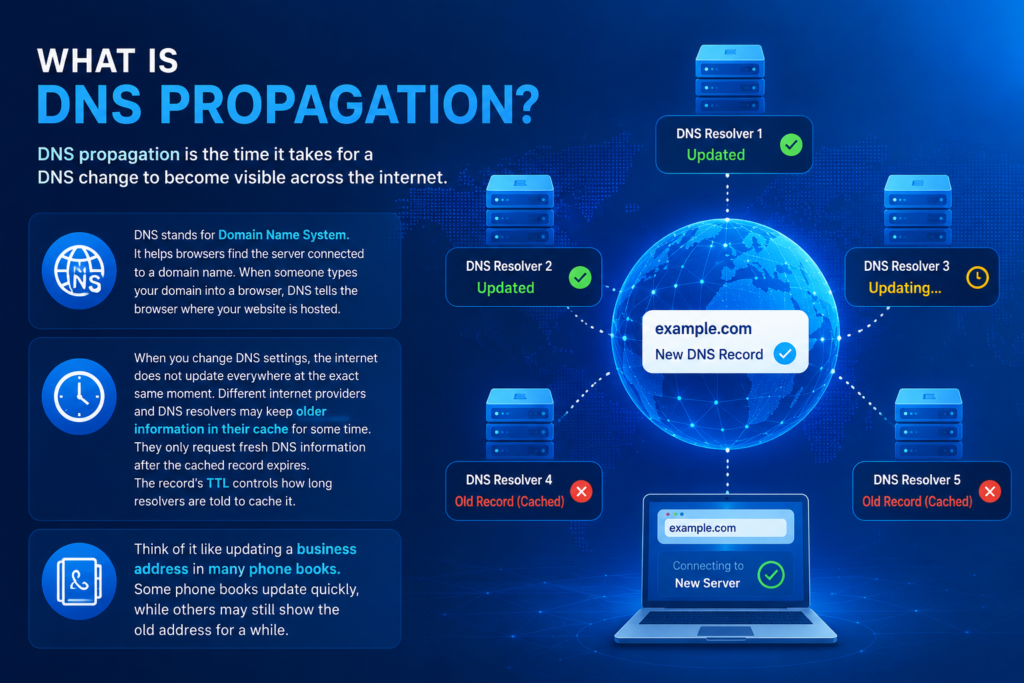
DNS propagation is the time it takes for a DNS change to become visible across the internet.
DNS stands for Domain Name System. It helps browsers find the server connected to a domain name. When someone types your domain into a browser, DNS tells the browser where your website is hosted.
When you change DNS settings, the internet does not update everywhere at the exact same moment. Different internet providers and DNS resolvers may keep older information in their cache for some time. They only request fresh DNS information after the cached record expires. The record’s TTL controls how long resolvers are told to cache it.
Think of it like updating a business address in many phone books. Some phone books update quickly, while others may still show the old address for a while.
How Long Does DNS Propagation Take?
So, how long does DNS propagation take in real life?
For many standard DNS changes, updates can start appearing within minutes. Most users may see the updated version within a few hours. However, hosting providers and domain registrars commonly advise allowing up to 24–48 hours for complete global propagation.
The actual DNS propagation time depends on:
-
The type of DNS record you changed.
-
The TTL value of the record.
-
Your domain registrar.
-
Your DNS provider.
-
Internet service provider caches.
-
Browser and device caching.
-
Whether you changed nameservers or only a DNS record.
Typical DNS Propagation Times
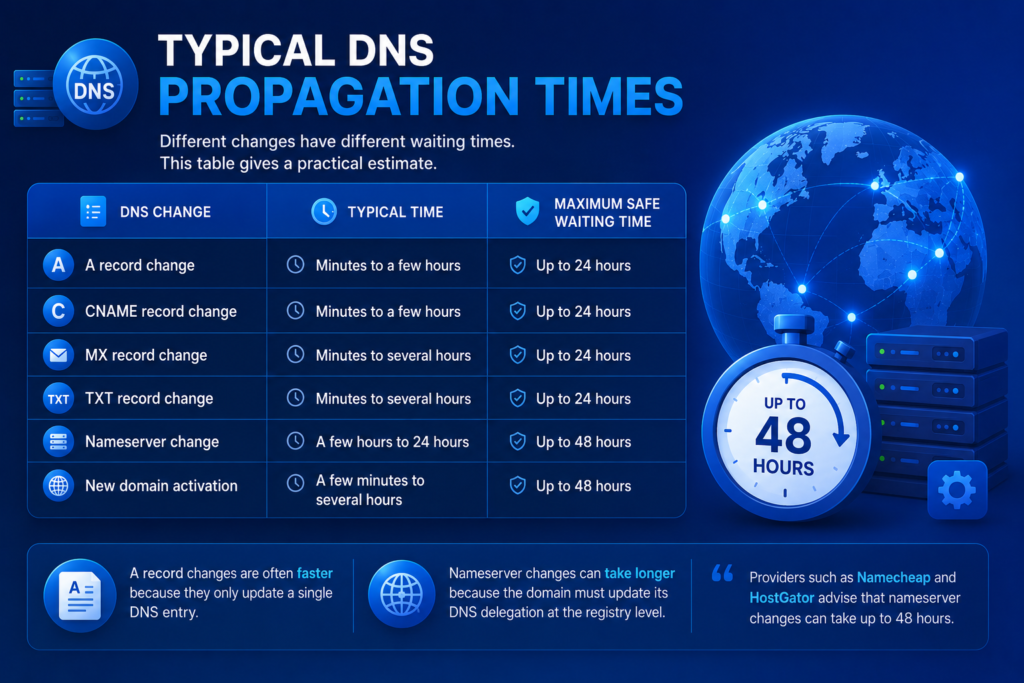
Different changes have different waiting times. This table gives a practical estimate.
| DNS change | Typical time | Maximum safe waiting time |
|---|---|---|
| A record change | Minutes to a few hours | Up to 24 hours |
| CNAME record change | Minutes to a few hours | Up to 24 hours |
| MX record change | Minutes to several hours | Up to 24 hours |
| TXT record change | Minutes to several hours | Up to 24 hours |
| Nameserver change | A few hours to 24 hours | Up to 48 hours |
| New domain activation | A few minutes to several hours | Up to 48 hours |
A record changes are often faster because they only update a single DNS entry. Nameserver changes can take longer because the domain must update its DNS delegation at the registry level. Providers such as Namecheap and HostGator advise that nameserver changes can take up to 48 hours.
Why Does DNS Propagation Take Time?
DNS propagation takes time because DNS information is stored in caches around the world.
When someone visits a website, their browser or internet provider may save the domain’s DNS information temporarily. This helps websites load faster and reduces DNS traffic. But when you make a change, some systems may continue to use the old information until the cache expires.
The most important setting is called TTL, which stands for Time to Live.
What Is TTL?
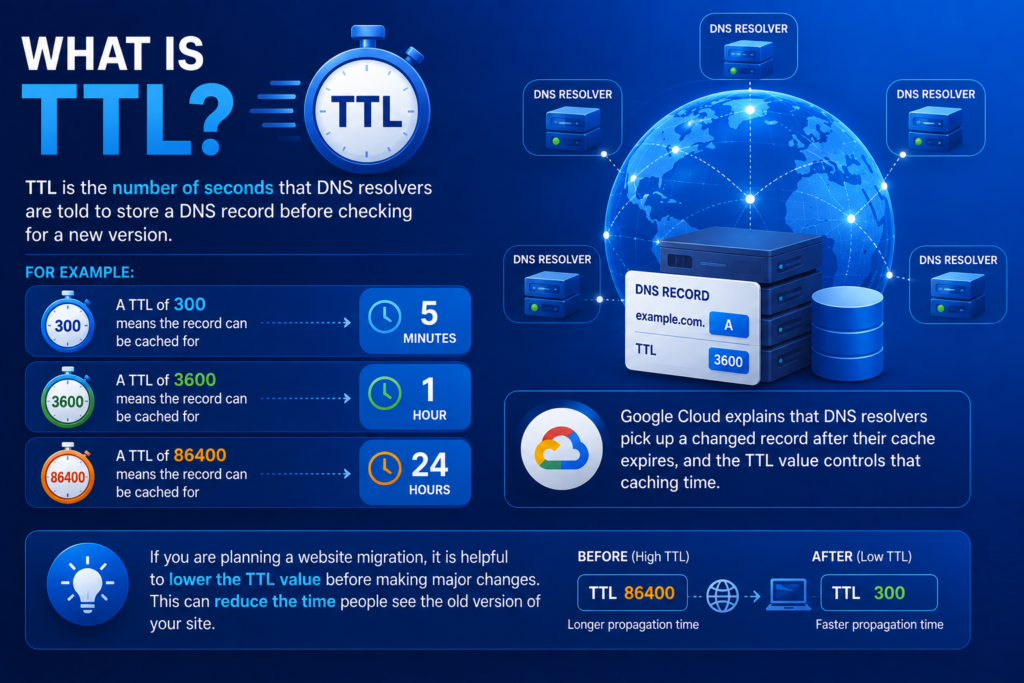
TTL is the number of seconds that DNS resolvers are told to store a DNS record before checking for a new version.
For example:
-
A TTL of
300means the record can be cached for 5 minutes. -
A TTL of
3600means the record can be cached for 1 hour. -
A TTL of
86400means the record can be cached for 24 hours.
Google Cloud explains that DNS resolvers pick up a changed record after their cache expires, and the TTL value controls that caching time.
If you are planning a website migration, it is helpful to lower the TTL value before making major changes. This can reduce the time people see the old version of your site.
How Long Do Nameserver Changes Take?
Nameserver changes normally take longer than an A record or CNAME update.
When you change nameservers, you are changing which DNS provider is responsible for your domain. This is a bigger change than updating one record. It may require updates at the domain registrar and registry level.
Most nameserver updates begin working within a few hours, but you should allow up to 48 hours for the change to be visible globally.
During this time, some visitors may see your old website while others see your new website. This is normal and does not always mean there is a problem.
How to Check DNS Propagation
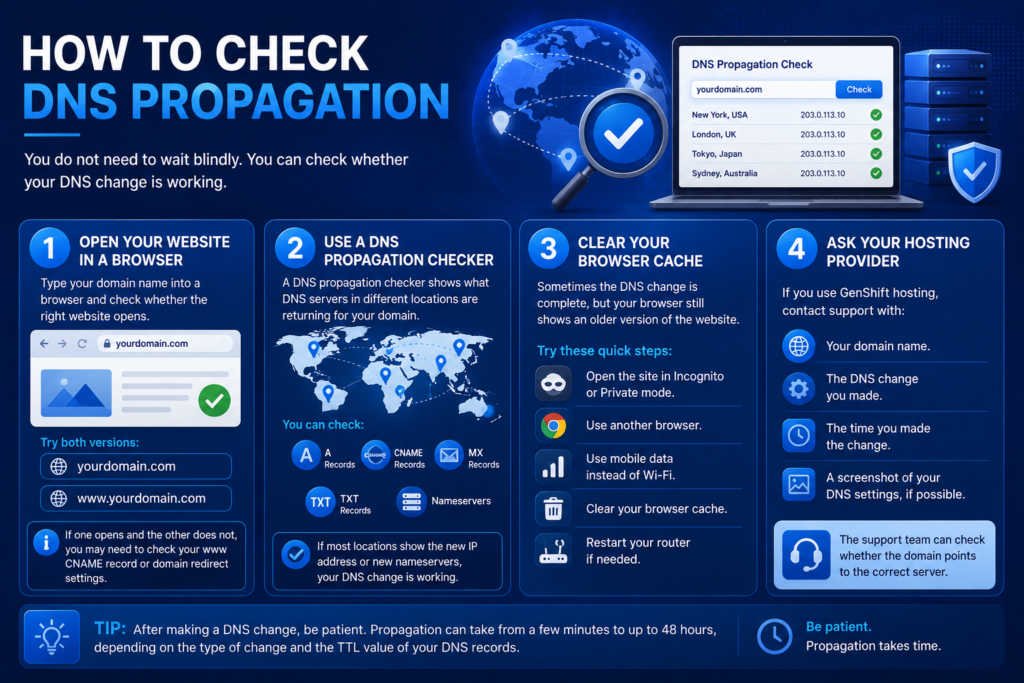
You do not need to wait blindly. You can check whether your DNS change is working.
1. Open Your Website in a Browser
Type your domain name into a browser and check whether the right website opens.
Try both versions:
-
yourdomain.com -
www.yourdomain.com
If one opens and the other does not, you may need to check your www CNAME record or domain redirect settings.
2. Use a DNS Propagation Checker
A DNS propagation checker shows what DNS servers in different locations are returning for your domain.
You can check:
-
A records
-
CNAME records
-
MX records
-
TXT records
-
Nameservers
If most locations show the new IP address or new nameservers, your DNS change is working.
3. Clear Your Browser Cache
Sometimes the DNS change is complete, but your browser still shows an older version of the website.
Try these quick steps:
-
Open the site in Incognito or Private mode.
-
Use another browser.
-
Use mobile data instead of Wi-Fi.
-
Clear your browser cache.
-
Restart your router if needed.
4. Ask Your Hosting Provider
If you use GenShift hosting, contact support with:
-
Your domain name.
-
The DNS change you made.
-
The time you made the change.
-
A screenshot of your DNS settings, if possible.
The support team can check whether the domain points to the correct server.
Why Are My DNS Changes Not Showing?
If your DNS changes are not showing, do not panic. First, check how long ago you made the change. If it has been less than 24–48 hours, waiting may be the correct solution.
Here are common reasons why DNS updates may not appear:
Incorrect Nameservers
Check that you copied the nameservers exactly as provided by your hosting company. One small spelling error can stop the connection.
Example format:
ns1.yourhostingcompany.com
ns2.yourhostingcompany.com
Wrong A Record IP Address
If you use an A record, make sure it points to the correct server IP address. Do not use an old server IP or an example IP from a tutorial.
Old DNS Records Still Exist
Your DNS zone may have old A records, AAAA records, or CNAME records that conflict with the new settings. Review records carefully before deleting anything.
Website Files Are Not Uploaded
DNS may be correct, but your website may not be uploaded to the correct hosting folder. In many shared hosting accounts, this is commonly the public_html folder.
Domain Is Not Active
Check whether your domain registration is active and not expired. An expired domain cannot work correctly.
Local Cache Is Showing Old Information
Your device, browser, router, or internet provider may still be using an old cached result. Test your website from another network or use a DNS propagation checker.
Can You Speed Up DNS Propagation?
You cannot force every internet provider to update instantly. However, you can reduce future delays with good planning.
Need Other Article?
How Much RAM Does a Website Need? 7 Best Practices How Much RAM Does a Website Need? A Practical Hosting […]
Can You Create a Business Email Without a Website? Can You Create a Business Email Without a Website Yes, you […]