How Much RAM Does a Website Need? 7 Best Practices

How Much RAM Does a Website Need? 7 Best Practices How Much RAM Does a Website Need? 7 Best Practices

How Much RAM Does a Website Need? A Practical Hosting Guide

Choosing web hosting often starts with storage, bandwidth, or price. But when a website becomes slow, shows errors, or struggles during traffic spikes, RAM is often the resource that matters most.

So, how much RAM does a website need?

For a small static website, less than 1 GB may be enough. A typical WordPress website usually performs more comfortably with 1–2 GB of server RAM, while a growing WooCommerce store or busy dynamic website may need 4 GB or more. However, there is no single “correct” number because your real RAM requirement depends on traffic, website software, plugins, caching, database activity, and the number of visitors using the website at the same time.

This guide explains how website RAM works, how much RAM different websites typically need, and when it makes sense to move from shared hosting to a VPS.

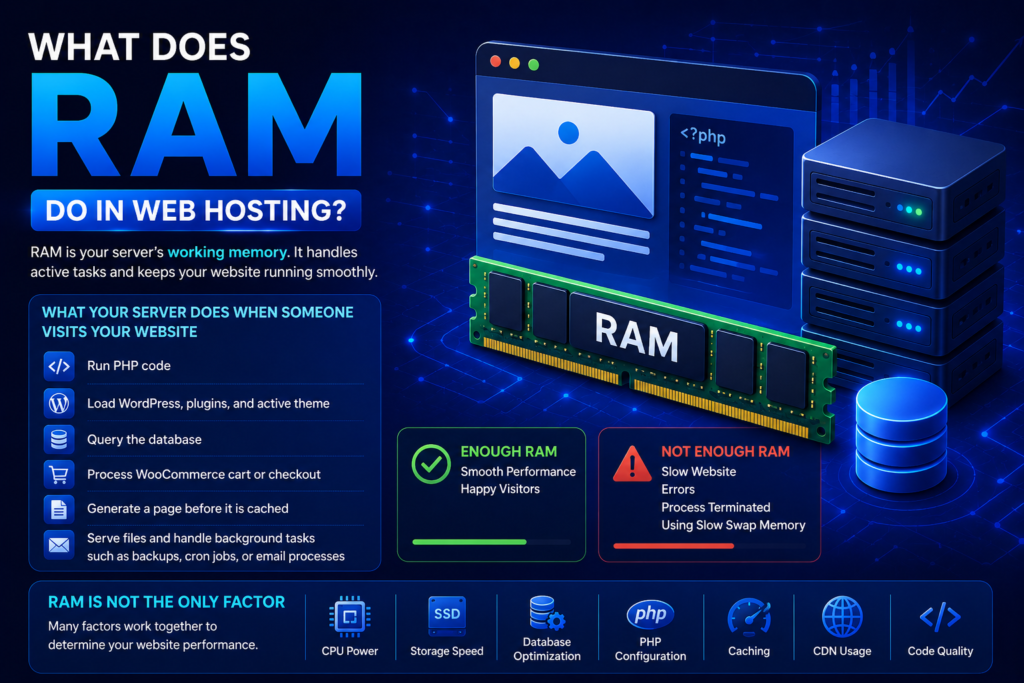
What does RAM do in web hosting?

RAM stands for Random Access Memory. It is the short-term working memory your server uses while handling active tasks.

When someone opens a page on your website, the server may need to:

  • Run PHP code

  • Load WordPress, plugins, and your active theme

  • Query the database

  • Process a WooCommerce cart or checkout

  • Generate a page before it is cached

  • Serve files and handle background tasks such as backups, cron jobs, or email processes

RAM gives those processes space to run.

If your server has enough available RAM, it can respond to visitors smoothly. If RAM becomes exhausted, your website may slow down, show errors, terminate processes, or start using disk-based swap memory, which is much slower than RAM.

It is important to understand that RAM is only one part of website performance. CPU power, storage speed, database optimization, PHP configuration, caching, CDN usage, and code quality also affect how fast your website feels.

How Much RAM Does a Website Need? 7 Best Practices How Much RAM Does a Website Need? 7 Best Practices

Server RAM vs PHP memory limit

A common source of confusion is the difference between total server RAM and the PHP or WordPress memory limit.

ResourceWhat it meansExample
Server RAMTotal memory available to the server, VPS, or hosting accountA VPS with 4 GB RAM
PHP memory limitMaximum memory one PHP script can usememory_limit = 256M
WordPress memory limitThe memory WordPress is allowed to request for its PHP processesWP_MEMORY_LIMIT = 256M
Available RAMUnused server memory at a given momentMay change every minute based on traffic and processes

For example, a 4 GB VPS does not mean that a single WordPress request can automatically use all 4 GB. Your PHP configuration may limit a WordPress process to 256 MB or another defined value.

WooCommerce currently recommends a WordPress memory limit of at least 256 MB. That is useful for a store application, but it is not the same thing as saying that a WooCommerce server only requires 256 MB of total RAM. The operating system, database, web server, cache, and multiple simultaneous PHP requests also need memory. WooCommerce’s server requirements documentation explains this WordPress-level requirement.

How much RAM does a website need?

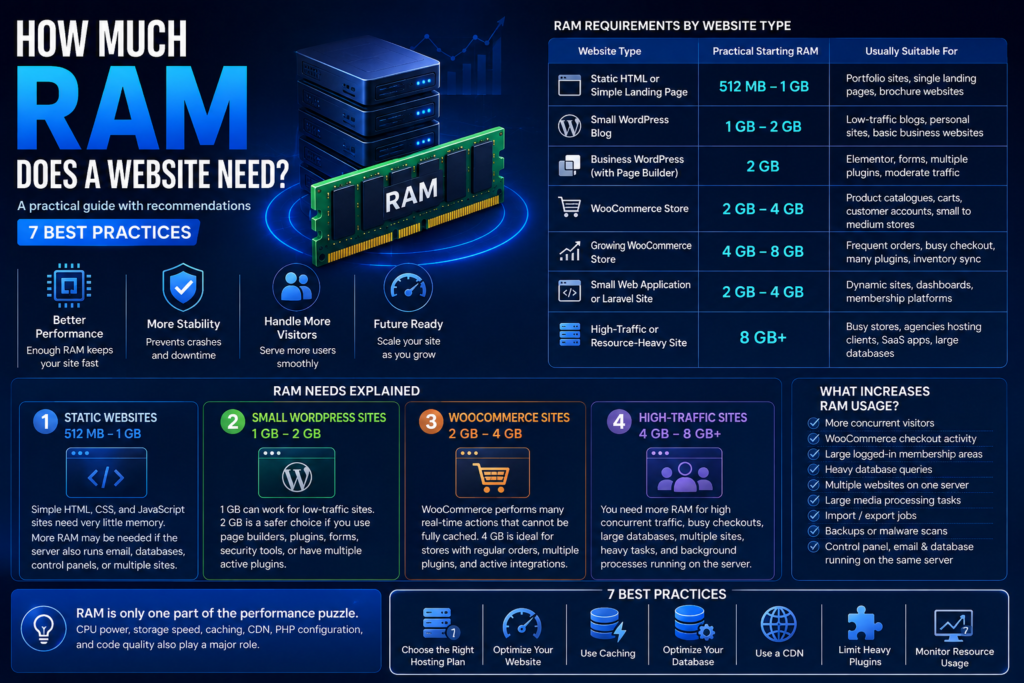
Use the table below as a practical starting point—not as a fixed rule. A well-optimized site with caching may use fewer resources than a poorly optimized site with fewer visitors.

Website typePractical starting RAMUsually suitable for
Static HTML or simple landing page512 MB–1 GBPortfolio sites, single landing pages, brochure websites
Small WordPress blog1 GB–2 GBLow-traffic blogs, personal sites, basic business websites
Business WordPress site with page builder2 GBElementor, forms, multiple plugins, moderate traffic
WooCommerce store2 GB–4 GBProduct catalogues, carts, customer accounts, small-to-medium stores
Growing WooCommerce store4 GB–8 GBFrequent orders, busy checkout periods, many plugins, inventory sync
Small web application or Laravel site2 GB–4 GBDynamic sites, dashboards, membership platforms
High-traffic or resource-heavy website8 GB+Busy stores, agencies hosting clients, SaaS apps, large databases

1. Static websites: 512 MB to 1 GB

A simple HTML, CSS, and JavaScript website needs very little server memory. If the website has no database, no PHP processes, and no resource-heavy application features, 512 MB to 1 GB can often be enough.

However, you may still need more RAM if the same server also runs email services, a control panel, monitoring tools, a database, or several websites.


2. Small WordPress websites: 1 GB to 2 GB

A basic WordPress blog or business website can often start with 1 GB of RAM if traffic is low and the site uses efficient themes and plugins.

For a more comfortable starting point, especially if you use Elementor, a visual page builder, backup plugins, contact forms, security tools, or several active plugins, 2 GB is usually a safer option.

The reason is not simply visitor count. WordPress uses PHP and a database, and each uncached request can require multiple server processes.

3. WooCommerce websites: 2 GB to 4 GB

WooCommerce is more resource-intensive than a standard WordPress blog because each customer may create dynamic actions such as:

  • Adding products to a cart

  • Updating quantities

  • Logging in to an account

  • Applying coupons

  • Calculating shipping

  • Completing checkout

  • Viewing order history

These pages usually cannot be fully cached for every user in the same way as a standard blog post. That means the server has to do more real-time work.

A small WooCommerce store may operate on 2 GB RAM, but 4 GB is often a more practical starting point for stores with regular orders, multiple plugins, product variations, payment gateways, analytics, and marketing integrations.

4. High-traffic websites: 4 GB to 8 GB or more

Traffic matters most when visitors arrive at the same time.

For example, a website receiving 10,000 monthly visits may use less RAM than a site with only 3,000 monthly visitors if the second website gets a sudden burst of traffic from an ad campaign, email promotion, influencer post, or seasonal sale.

You may need 4 GB, 8 GB, or more when your website has:

  • High numbers of concurrent visitors

  • Busy WooCommerce checkout activity

  • Large logged-in membership areas

  • Heavy database queries

  • Multiple websites on one VPS

  • Large media processing tasks

  • Import/export jobs

  • Backup or malware scans running on the same server

  • A control panel, email service, and database on one machine

How Much RAM Does a Website Need? 7 Best Practices How Much RAM Does a Website Need? 7 Best Practices

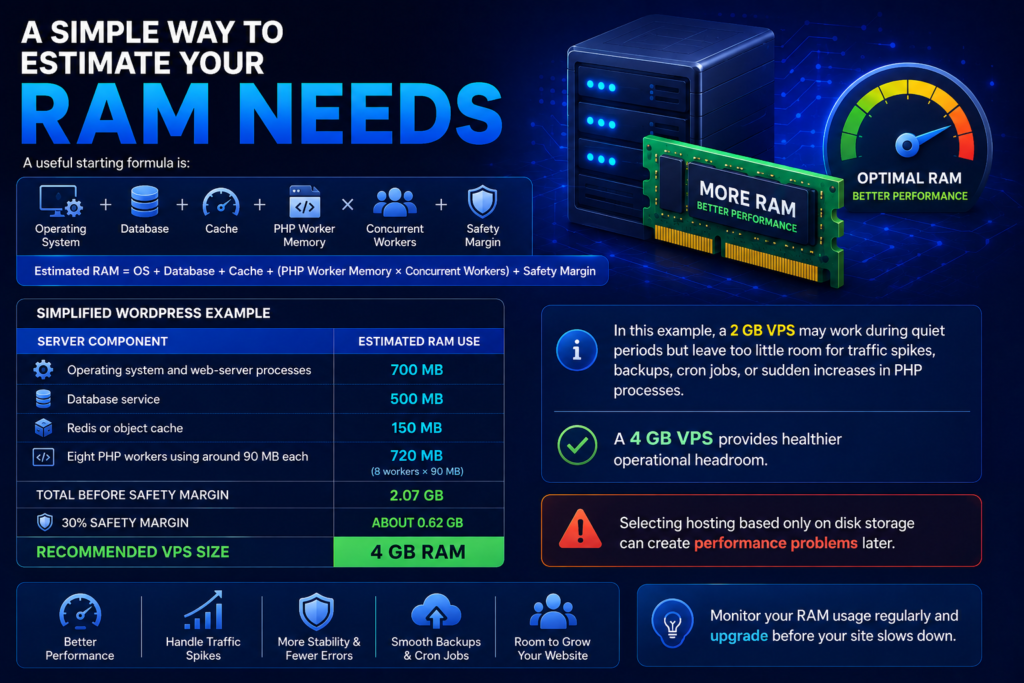
A simple way to estimate your RAM needs

A useful starting formula is:

Estimated RAM=Operating system+database+cache+(PHP worker memory×concurrent workers)+safety margin\text{Estimated RAM} = \text{Operating system} + \text{database} + \text{cache} + (\text{PHP worker memory} \times \text{concurrent workers}) + \text{safety margin}

Here is a simplified WordPress example:

Server componentEstimated RAM use
Operating system and web-server processes700 MB
Database service500 MB
Redis or object cache150 MB
Eight PHP workers using around 90 MB each720 MB
Total before safety margin2.07 GB
30% safety marginAbout 0.62 GB
Recommended VPS size4 GB RAM

In this example, a 2 GB VPS may work during quiet periods but leave too little room for traffic spikes, backups, cron jobs, or sudden increases in PHP processes. A 4 GB VPS provides healthier operational headroom.

This is why selecting hosting based only on disk storage can create performance problems later.

How Much RAM Does a Website Need? 7 Best Practices How Much RAM Does a Website Need? 7 Best Practices

Signs your website needs more RAM

You do not always need to upgrade immediately. First, identify whether RAM is truly the bottleneck. These signs may indicate that your current plan does not have enough available memory:

  • Your website slows down during traffic peaks

  • WordPress displays “Allowed memory size exhausted” errors

  • WooCommerce checkout becomes slow or fails

  • Your server frequently uses swap memory

  • PHP or database processes are repeatedly terminated

  • Pages return 500, 502, 503, or 504 errors during busy periods

  • Your hosting dashboard shows consistently high memory usage

  • Scheduled tasks, imports, backups, or updates cause the website to become unresponsive

  • Your server monitoring shows memory usage staying close to maximum for long periods

A single temporary spike does not always mean you need a larger server. But if memory pressure happens repeatedly, an upgrade is usually safer than waiting for failed orders, downtime, or a poor user experience.

How to check website memory usage

The best method depends on your hosting environment.

On shared hosting

Check your hosting control panel for resource usage, CPU usage, memory usage, entry processes, or errors. If you use cPanel, look for a section such as “Resource Usage.”

If your website regularly hits account limits, ask your host whether the limit is related to RAM, CPU, entry processes, or PHP workers. These are different resources, and the solution may not always be more RAM.

On a VPS or cloud server

If you have SSH access, these commands can help you inspect memory usage:

free -h

This shows total, used, free, shared, cache, and swap memory.

top

This displays running processes and can help identify whether PHP, MySQL, backups, or another process is consuming memory.

htop

If installed, this provides a clearer interactive view of CPU and RAM consumption.

vmstat 1 5

This gives a short snapshot of system activity. Consistent swapping can indicate memory pressure.

For WordPress and WooCommerce, also check the WordPress Site Health screen and WooCommerce system-status information. WooCommerce identifies both the PHP memory limit and WordPress memory limit in its system status report

When should you move from shared hosting to a VPS?

Shared hosting can be a good starting option for new websites, smaller blogs, and low-traffic business sites. It is simple, affordable, and often includes a control panel.

A VPS becomes more suitable when you need:

  • Dedicated and scalable RAM allocation

  • Greater control over PHP, caching, web-server, or database settings

  • Root or administrator access

  • Better performance consistency during traffic growth

  • The ability to host several websites or applications

  • Custom software such as Redis, Node.js, Docker, or specific server modules

  • A more stable environment for WooCommerce, memberships, agencies, or web applications

If your website is generating leads, orders, or client revenue, upgrading before consistent resource exhaustion can be less costly than dealing with slow checkouts or downtime.

Explore GenShift’s [Managed VPS Hosting] if you need dedicated server resources with technical support, or review [WordPress Hosting] if your site needs a simpler managed setup.

How to reduce RAM usage before upgrading

More RAM is useful, but it should not replace optimization. Before moving to a larger plan, check these areas

Use full-page caching

A caching plugin or server-level cache can reduce the number of PHP and database requests needed for repeat visitors. This is especially useful for public blog posts, landing pages, and product category pages.

Do not cache sensitive WooCommerce pages such as Cart, Checkout, and My Account for all visitors.

Remove unnecessary plugins

Every active plugin does not automatically create a major problem, but poorly coded, duplicated, or outdated plugins can increase PHP execution, database queries, and memory use.

Audit your plugins regularly:

  • Remove plugins you no longer use

  • Avoid installing multiple plugins that perform the same job

  • Update plugins, themes, and WordPress safely

  • Replace heavy plugins with lightweight alternatives where possible

Optimize the database

A slow or oversized database can increase server load. Remove unnecessary post revisions, expired transients, unused plugin data, spam comments, and old WooCommerce sessions carefully.

Always create a backup before changing the database.

Use a CDN for static content

A CDN can deliver images, CSS, JavaScript, and other static assets closer to visitors. This does not eliminate your need for server RAM, but it can reduce the amount of work your origin server handles.

Separate heavy workloads

If your VPS runs the website, email server, backups, database, and monitoring services together, all of these compete for the same RAM.

As your business grows, separating workloads can improve stability. For example, you may use a CDN for media delivery, external email services, remote backups, or a separate database server for larger applications.

Final answer: how much RAM should you choose?

For most small WordPress websites, start with 1–2 GB of RAM. For a business website using a page builder, several plugins, or moderate traffic, 2 GB is usually more comfortable. For a WooCommerce store or growing dynamic website, 4 GB is often a sensible starting point.

The right choice depends on actual usage, not a generic number. Monitor your website during normal traffic and peak periods, keep a healthy memory buffer, optimize inefficient plugins and database queries, and upgrade before customers experience errors.

If you are unsure which plan fits your website, review your current memory usage, traffic patterns, website platform, plugins, and expected growth before choosing a hosting package.

For most small WordPress websites, start with 1–2 GB of RAM. For a business website using a page builder, several plugins, or moderate traffic, 2 GB is usually more comfortable. For a WooCommerce store or growing dynamic website, 4 GB is often a sensible starting point.

The right choice depends on actual usage, not a generic number. Monitor your website during normal traffic and peak periods, keep a healthy memory buffer, optimize inefficient plugins and database queries, and upgrade before customers experience errors.

If you are unsure which plan fits your website, review your current memory usage, traffic patterns, website platform, plugins, and expected growth before choosing a hosting package.

Shared hosting can be a good starting option for new websites, smaller blogs, and low-traffic business sites. It is simple, affordable, and often includes a control panel.

A VPS becomes more suitable when you need:

  • Dedicated and scalable RAM allocation

  • Greater control over PHP, caching, web-server, or database settings

  • Root or administrator access

  • Better performance consistency during traffic growth

  • The ability to host several websites or applications

  • Custom software such as Redis, Node.js, Docker, or specific server modules

  • A more stable environment for WooCommerce, memberships, agencies, or web applications

If your website is generating leads, orders, or client revenue, upgrading before consistent resource exhaustion can be less costly than dealing with slow checkouts or downtime.

Explore GenShift’s [Managed VPS Hosting] if you need dedicated server resources with technical support, or review [WordPress Hosting] if your site needs a simpler managed setup.
Need Other Article?

How Much RAM Does a Website Need? Hosting Guide

Can You Create a Business Email Without a Website? 7 Easy Steps

Scroll to Top